1. Initial validation of your email address
To receive important notifications and information from the Workways app (for example, booking notifications), you need to validate your email address.
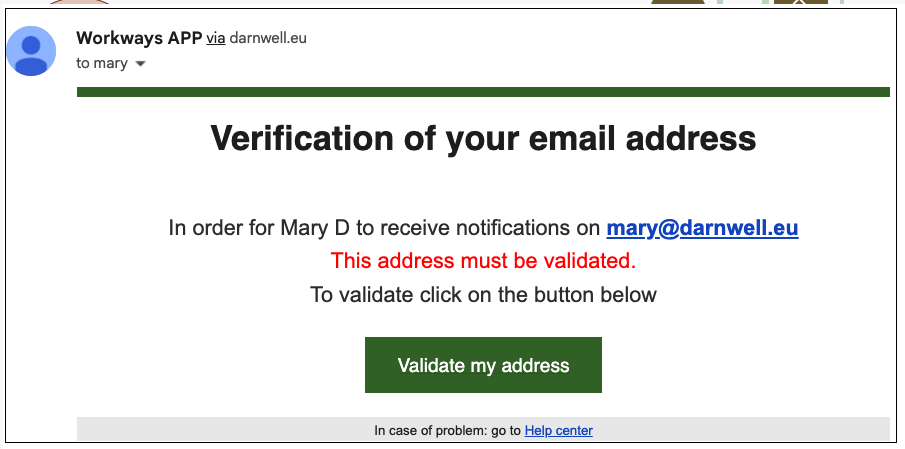
To do this, simply click the Validate my address button in the email sent to you from the Workways app.
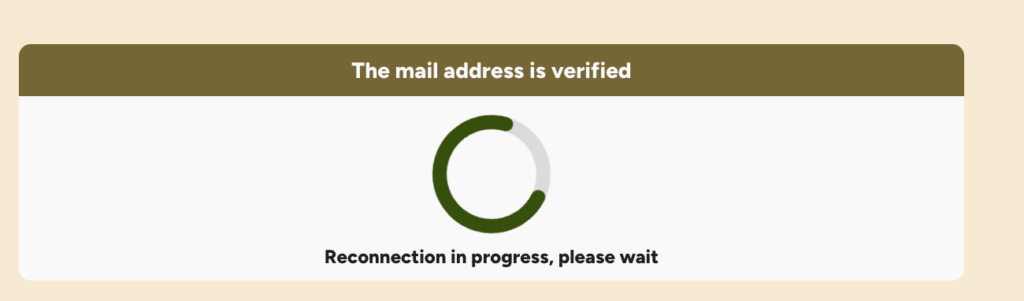
Once you click this button, you will see a message confirming that your email address has been validated and you will be automatically logged into the Workways app.
2. If you haven’t received the email or have deleted it
You can resend the validation directly from the Workways app by following these steps:
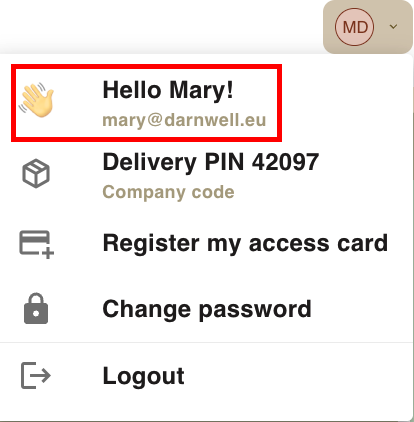
- Go to your profile in the Workways app.
- In the Email & password section, if your email hasn’t been validated yet, you will see an envelope icon.
- Icon: The envelope is grey.
- Displayed message: Email not verified, this member cannot communicate by email
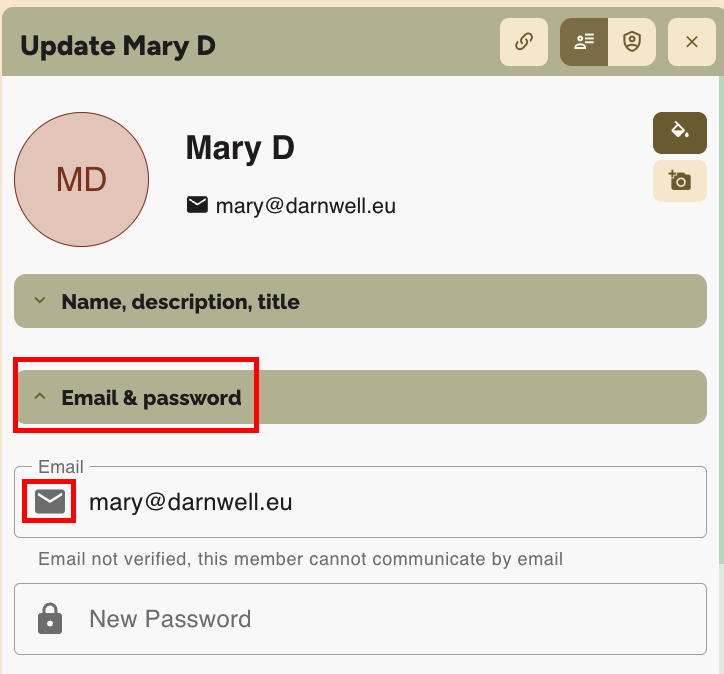
- Click on the envelope icon to have the app resend the verification email
- Icon change: The envelope turns orange.
- Displayed message: Email verification will be done after saving.
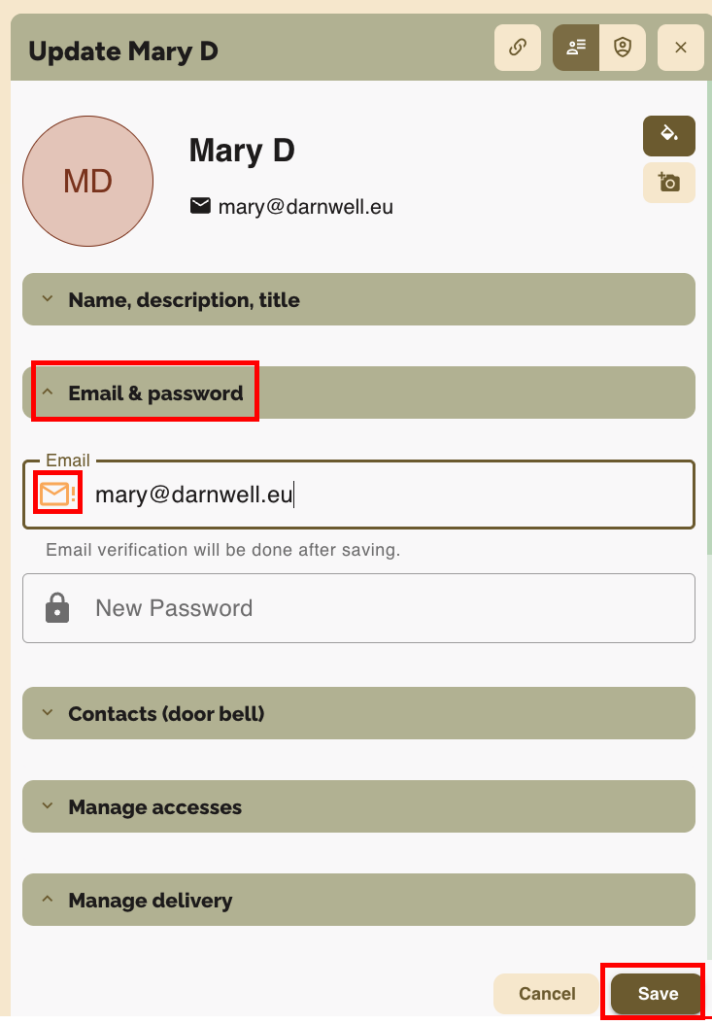
- Click the Save button to confirm the action.
- Icon change: The envelope turns light green.
- Displayed message: Email verification sent. Waiting for member response
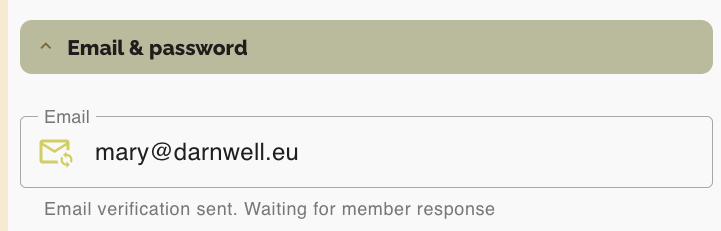
- Then, follow the instructions in Step 1 to validate your address.
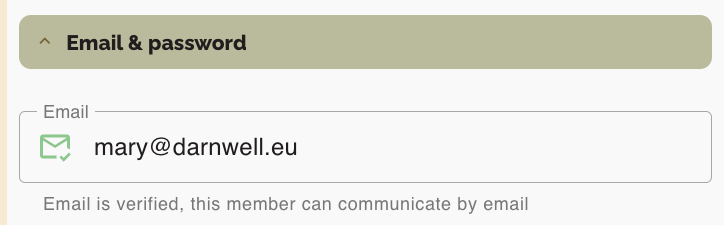
- Once validated, the email icon turns dark green.
- Final message: Email is verified, this member can communicate by email