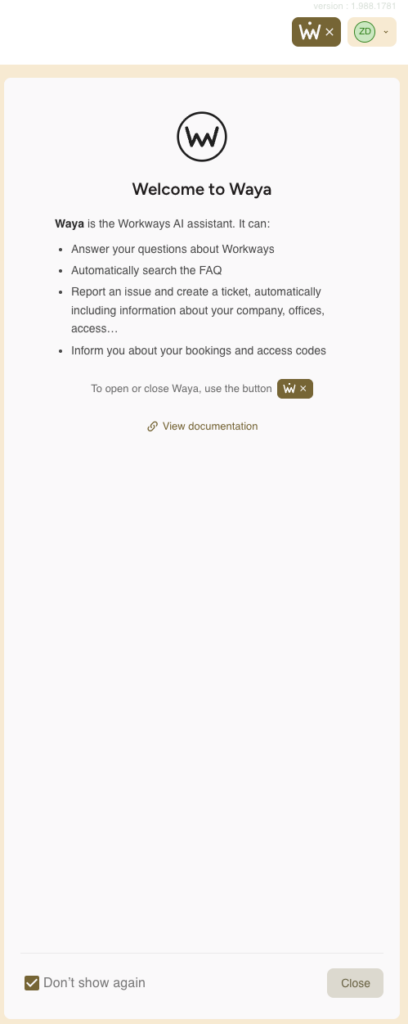
We have Waya, our AI support assistant, in place to make support faster and simpler for you.
Use Waya whenever you have a question: it will guide you to the right information and share links to the relevant FAQs and help articles.
If something can’t be resolved through the available resources, Waya will direct you to the appropriate next step for additional support.
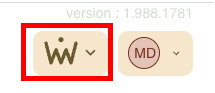
1. In the top-right corner of the Workways app, click the Waya button (the W icon) to open Waya.
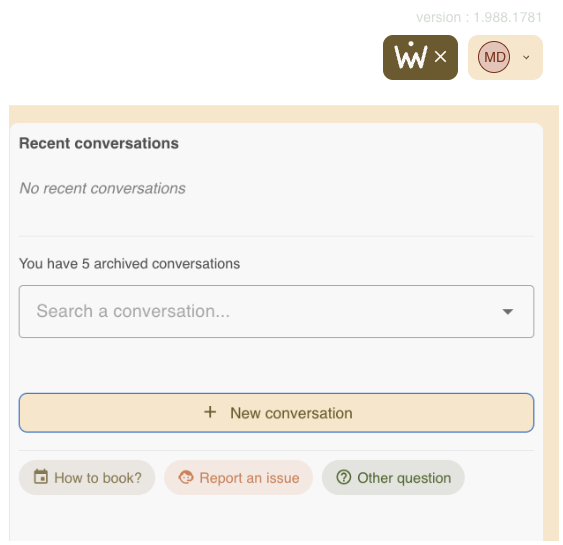
2. You can start a conversation and ask your question by clicking New conversation.
You can also search to find your past conversations.
Three shortcut options are available: How to book, Report an issue or Other question (for any other request).
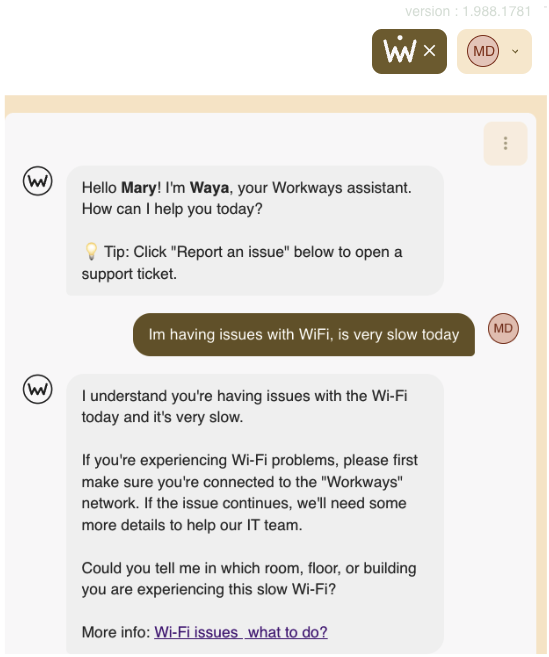
3. If you start a new conversation, this is what it will look like in Waya. You simply type a question or describe an issue (e.g. “My access card stopped working,” “How do I book a meeting room?” or “The Wi-Fi isn’t working”) and Waya will reply with guidance and links to the relevant FAQs.
Example:
4. When you click the menu (⋮), you will also be able to view the following options:
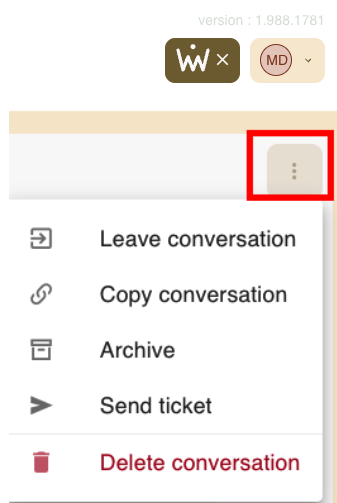
Leave conversation – close the current conversation.
Copy conversation – copy the conversation text.
Archive – archive the conversation for later reference.
Send ticket – contact the Workways Help Center team for further assistance.
Delete conversation – permanently delete the conversation.
5. Besides clicking the option Send ticket to contact the Workways Help Center team for further assistance, you can also reach the team by clicking the Send report button. This button will appear in your conversation with Waya after Waya gathers some information from you to help identify the issue.
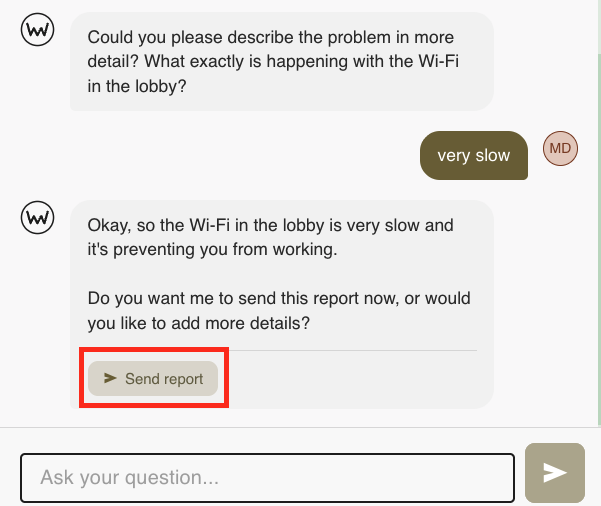
6. Once you click this button, you will see a confirmation message appear as follows:

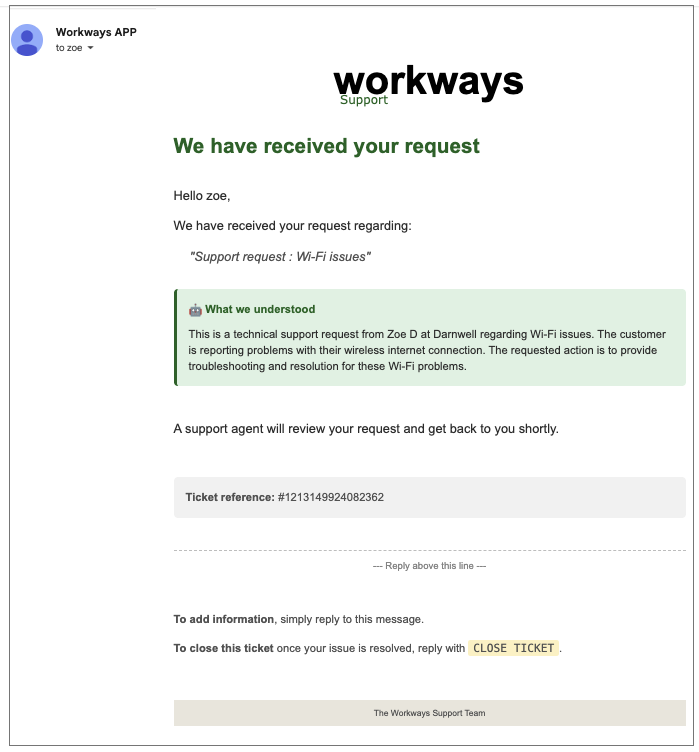
7. You will shortly receive an automated email confirming that your request has been successfully received by the Workways Help Center team.
This email will include a brief summary of your issue, a ticket reference number for tracking and instructions on how to provide additional information or close the ticket once your issue is resolved.
8. To close Waya, click the X icon in the top right corner of the Workways application to close the app.
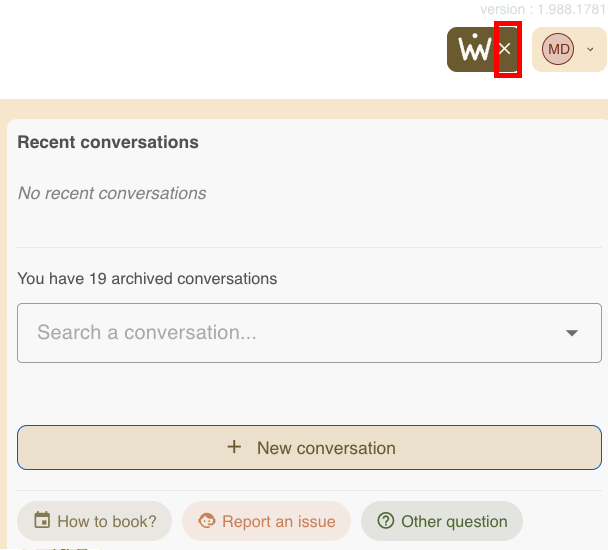
You can also click on the Close button and check: Do not show again.