
How visitor access PIN work #
Visitor access PIN allows guests to enter the building securely and easily. Depending on your company’s configuration, different privacy modes may be available. By default, the system operates in private mode.
Private mode #
- The host creates an invitation for the visitor.
- The visitor’s email address is required.
- The visitor receives the access PIN by email
- The host can see that the invitation has been created and track it in the invitation list.
- The host does not need to manually communicate the PIN.
How do I invite a visitor? #
You can invite a visitor directly from your profile in the Workways application:
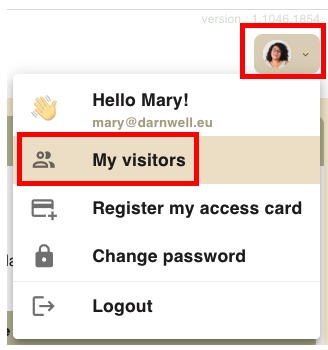
- Go to Profile menu → My visitors
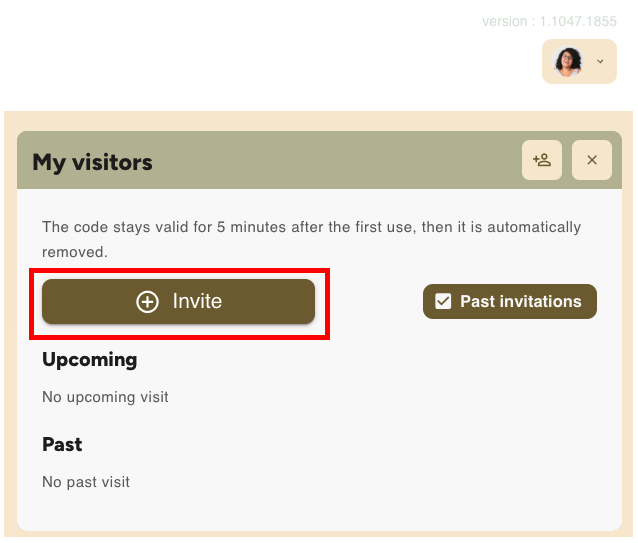
- Create a new visitor code (PIN) by clicking Invite.
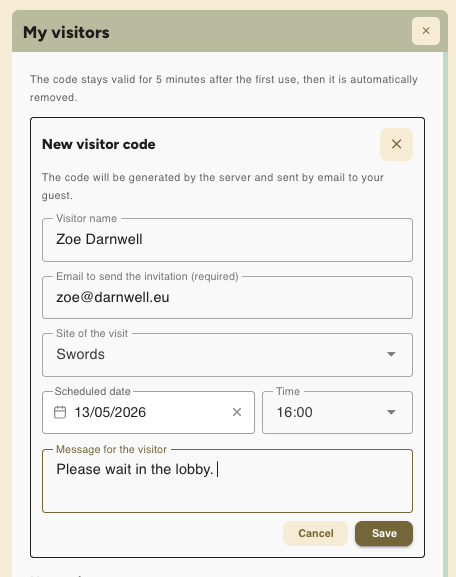
When creating an invitation:
- Email (required): the visitor will receive the invitation by email
- Date & time (optional): included in the email if added
- Message (optional): Included in the email if added
When clicking Save, the message below is displayed and visitors can be viewed in the Upcoming section.
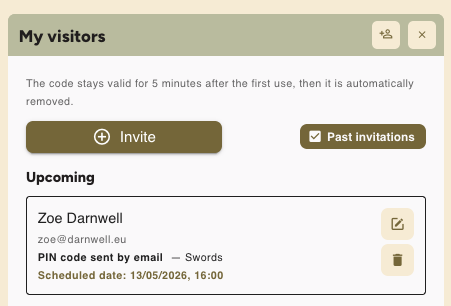
The host cannot view the PIN.
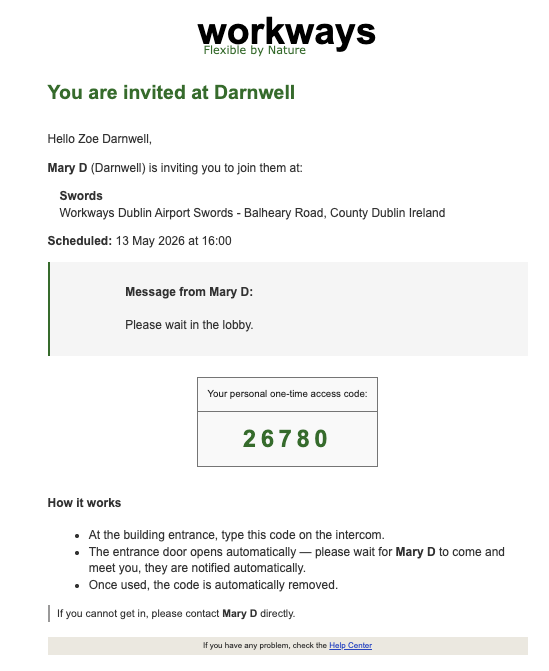
Your visitor will then receive an automated email containing:
- Their PIN access
- Instructions on how to enter the building
The invitation email may also include additional information such as building directions or maps.
What access does the visitor have? #
- Visitors have the same access time restrictions as the member who invited them.
- Invitations are valid only for the site where they were created.
What happens when the visitor arrives? #
- You receive a notification when the visitor uses their PIN, including a photo of the visitor.
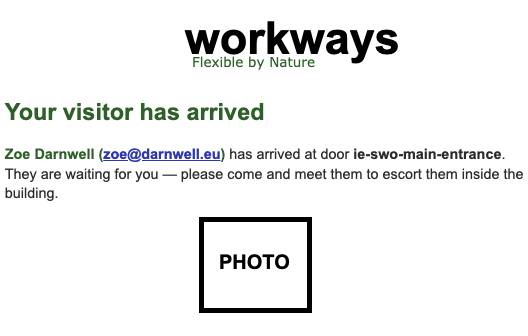
- The visitor should wait in the lobby or reception after entering.
- The host must meet and collect the visitor there.
- Visitors should not circulate unaccompanied in the building.
Single-use PIN #
- Visitor access PIN are intended for single use.
- The visitor uses the PIN upon arrival to access the building and reach the lobby or reception area.
- If a visitor needs to leave and return later, the recommended process is for the host to accompany the visitor or issue a new invitation if needed.
Editing an invitation #
You can edit an upcoming invitation, for example if you need to change the date, by clicking on Edit.
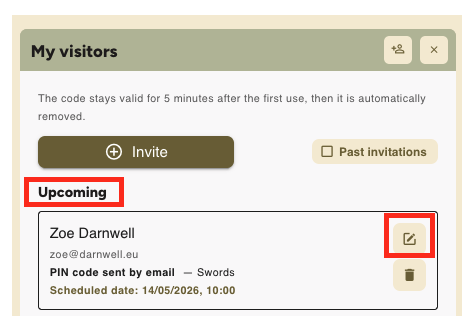
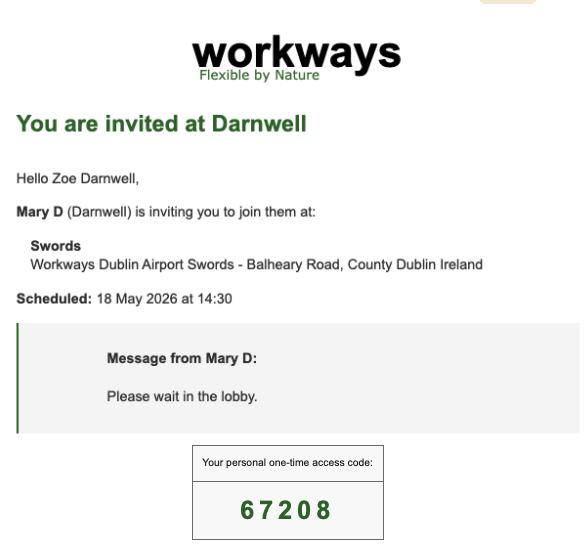
Your visitor will then receive a new automated email with access information.
Re-inviting a visitor #
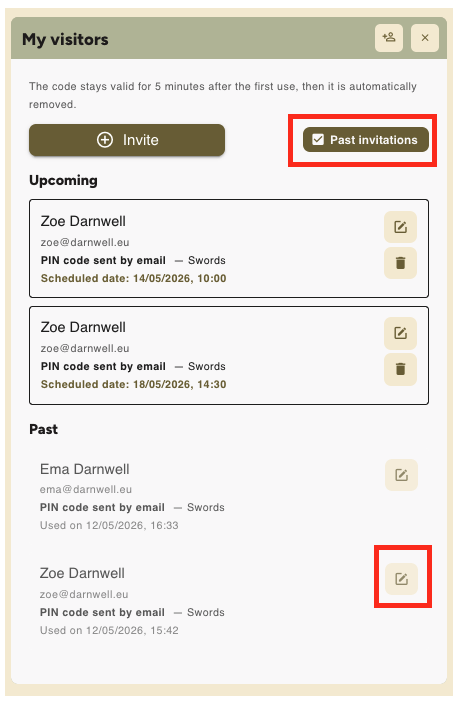
- A new invitation can be created by enabling Past invitations and editing the invitation for the visitor we want to re-invite by clicking on Edit and then on Invite again.
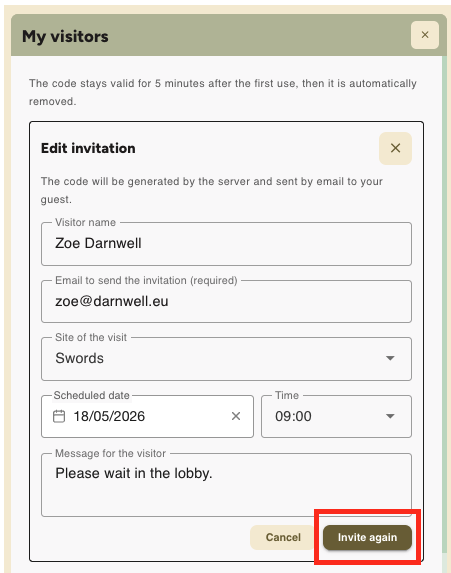
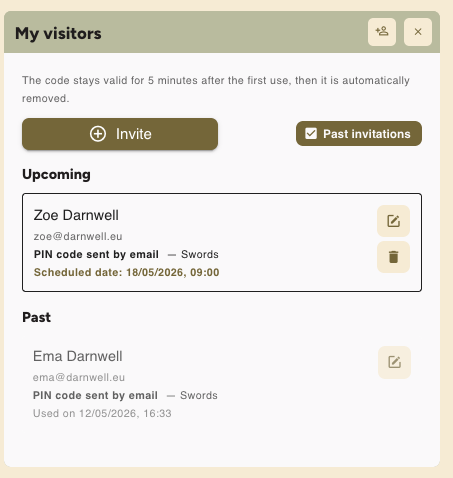
- The visitor receives a new email with a new PIN
- The status returns to Upcoming
- History is preserved for tracking purposes
Invitation deletion #
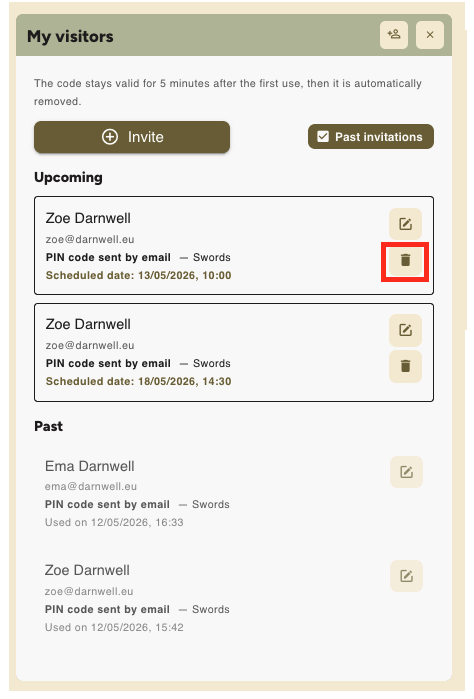
- If unused: if the PIN has not been used, the invitation can be deleted and the PIN is immediately deactivated and can no longer be used.
- If already used: if the PIN has already been used, the invitation cannot be deleted, as past entries remain available in logs for audit and traceability purposes.
Is visitor activity tracked? #
Yes, in the access logs in the Workways application.
- The visitor is identified as a guest.
- The inviting member is recorded.
Privacy and data handling #
- We do not store or expose sensitive visitor information.
- PINs are sent securely.
- Visitor data is handled in compliance with GDPR.